custom-tag-history.yml
Player custom-tag history GUI file: menu/custom-tag-history.yml.
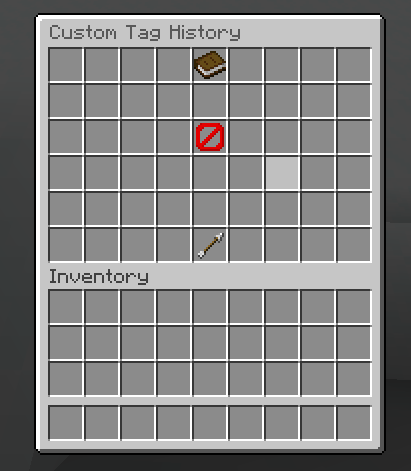
This file controls the paged history screen where players can:
- view saved custom-tag entries
- equip/unequip a saved custom tag
- remove history entries (Q action)
- navigate between history pages
Function
custom-tag-history.yml renders dynamic history entries plus static utility controls.
At runtime, this menu is used to:
- Build history inventory UI (
title,rows). - Resolve entry slot range (
start-slottoend-slot) or explicit slot list. - Render each history entry with state variant (
selected/normal). - Render static controls (
header,empty,back,prev,next). - Handle equip/unequip and entry removal interactions.
Structure
custom-tag-history:
  title: "<#595959>Custom Tag History"
  rows: 6

  entries:
    start-slot: 9
    end-slot: 44
    selected: ...
    normal: ...

  items:
    header: ...
    empty: ...
    back: ...
    prev: ...
    next: ...
How to Read This Structure
titlelabels the history screen.rowssets the inventory size for the history list and controls.entriesis the dynamic area that renders saved custom-tag cards.selectedandnormalare the two visual states used to show whether a saved tag is currently equipped.itemscontains the header, empty-state message, navigation buttons, and the back button.- Use this page to explain how saved history entries are displayed and how players can move through them.
Root Block
custom-tag-history:
  title: "<#595959>Custom Tag History"
  rows: 6
Key behavior:
title: menu title with MiniMessage support.rows: inventory rows (6= 54 slots).
Entries Block
entries:
  start-slot: 9
  end-slot: 44
  # Optional explicit list override:
  # slot: [9, 10, 11, ...]
This block defines the dynamic render area for history entries.
Slot behavior:
start-slot+end-slot: contiguous range mapping.- Optional
slot: [ ... ]: explicit slot list override.
If explicit slot is provided, it should be considered the primary map for entry placement.
Entry Variants
entries.selected
Rendered when a history entry is currently equipped as active custom tag.
Visual intent:
- Uses
LIME_DYE. - Adds
(Selected)in display name. - Lore explains click to unequip.
Keys used:
materialdisplay_nameloreactions
Example placeholders:
{index}{tag_display}
entries.normal
Rendered for non-selected history entries.
Visual intent:
- Uses
GRAY_DYE. - Lore explains click to equip.
Keys used:
materialdisplay_nameloreactions
Example placeholders:
{index}{tag_display}
Entry Interaction Model
Both entry variants include click sound action and support two player intents:
- regular click: equip (normal) or unequip (selected)
- Q drop key: remove the history entry (as described in lore)
Configured action in file:
[SOUND] UI_BUTTON_CLICK 1 1 master
Core equip/unequip/remove behavior is driven by menu handler logic associated with this history menu context.
Static Items Block
header
Top information panel in slot 4.
Shows:
{total_history}{history_limit}{page}/{max_page}
Used as informational header (actions: []).
empty
Fallback placeholder in slot 22 when player has no history entries.
Purpose:
- Communicates empty state clearly.
- Redirects player expectation to create custom tag first.
back
Back-navigation button in slot 49.
Purpose:
- Returns player to main tags menu.
Configured action:
[SOUND] UI_BUTTON_CLICK 1 1 master
prev
Previous page button in slot 45.
Shows:
{page_prev}
Configured action:
[SOUND] UI_BUTTON_CLICK 1 1 master
next
Next page button in slot 53.
Shows:
{page_next}
Configured action:
[SOUND] UI_BUTTON_CLICK 1 1 master
Placeholders Used
Common placeholders in this menu:
{index}{tag_display}{total_history}{history_limit}{page}{max_page}{page_prev}{page_next}
Actions
The history menu uses a compact action set:
- Clicking a normal entry equips that saved tag
- Clicking a selected entry unequips it
- Pressing
Qon an entry removes it from history [PAGE_PREVIOUS]and[PAGE_NEXT]move through history pages[BACK]returns to the main tag menu[SOUND] UI_BUTTON_CLICK 1 1 masterplays the click feedback on entries and navigation buttons
For this page, the important GUI actions block is usually just the sound cue plus the page controls, while the actual equip, unequip, and delete behavior comes from the history menu handler.
This page is source-backed and includes a short callout so the content reads like a guide instead of plain reference text.